How to connect WhatsApp and LinkedIn to Cursor
One entry in ~/.cursor/mcp.json, one sign-in, and Cursor's agent can read your WhatsApp and LinkedIn messages. The config, the real output, the fixes.
- How long?
- 5 minutes
- You need
- Cursor
- Can it send?
- Not at first
Connect both accounts in Pluggzy, add a server named pluggzy with the URL https://pluggzy.com/mcp to ~/.cursor/mcp.json, and sign in once. Cursor’s agent then gets 50 tools for your accounts, among them list_chats, get_messages and send_message. It can read from the start. It can’t send until you allow it.
We ran every step below with Cursor’s CLI, cursor-agent, because its output is easy to show. The editor reads the same file and lists the server in its MCP settings.
1. Connect WhatsApp and LinkedIn in Pluggzy
On the WhatsApp connect page, choose Scan a QR code or Use a phone number instead and approve the link on your phone. On the LinkedIn one, fill in Email or phone and Password and press Connect LinkedIn. LinkedIn may ask you to confirm it’s you, as it does for any new browser.
Both accounts then show as Connected on the Accounts page. Each one is one account on your plan, and the 3-day free trial covers both.
2. Add the server to mcp.json
Open ~/.cursor/mcp.json, or create it:
{
  "mcpServers": {
    "pluggzy": {
      "url": "https://pluggzy.com/mcp"
    }
  }
}
Cursor now knows the server and has no access yet:
$ cursor-agent mcp list
pluggzy: requires_authentication
If it says not loaded (needs approval) instead, run cursor-agent mcp enable pluggzy first.
3. Sign in
cursor-agent mcp login pluggzyYour browser opens Pluggzy’s permission page, titled “Let Cursor connect.”
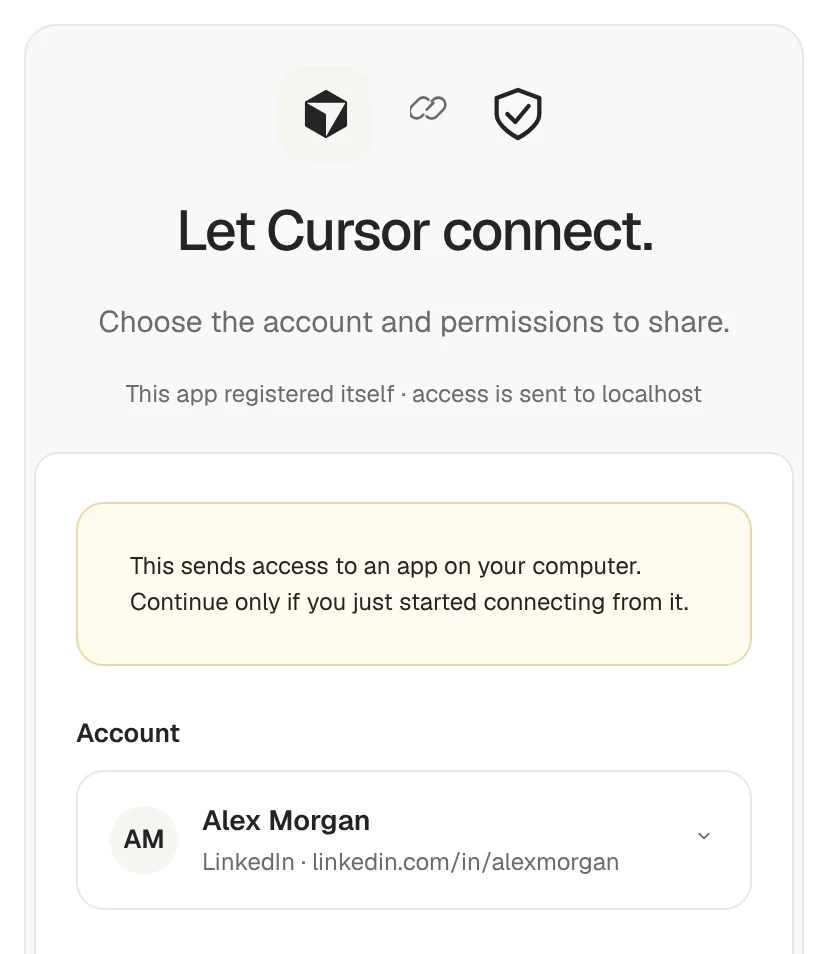
Two things on this page decide what Cursor can do.
The Account menu opens on your first account. Leave it there and the connection isn’t tied to one account: Cursor can use every account in your workspace, WhatsApp and LinkedIn alike. Pick any other entry and Cursor is limited to that one. Nothing on the page spells this out, and it’s the usual reason only one account answers later.
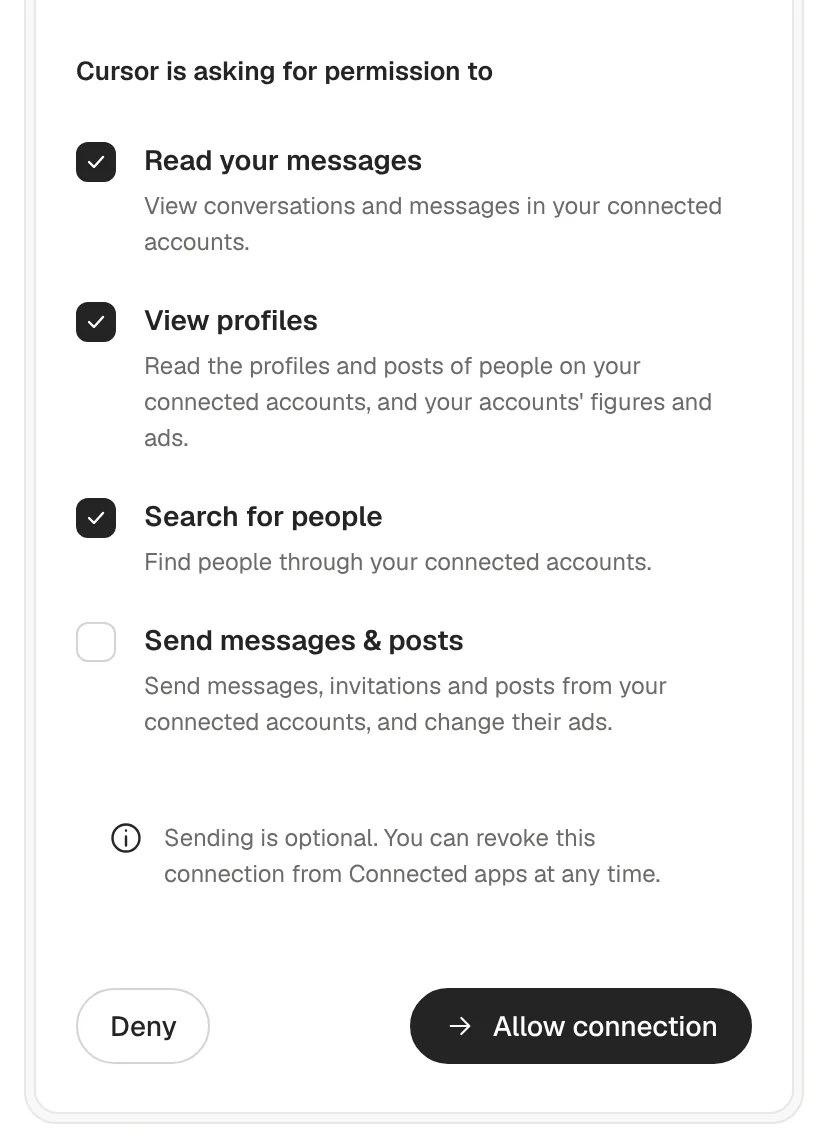
Send messages & posts is unticked. Leave it for now. Press Allow connection, and the terminal prints ✓ MCP login successful.
4. Check what Cursor sees
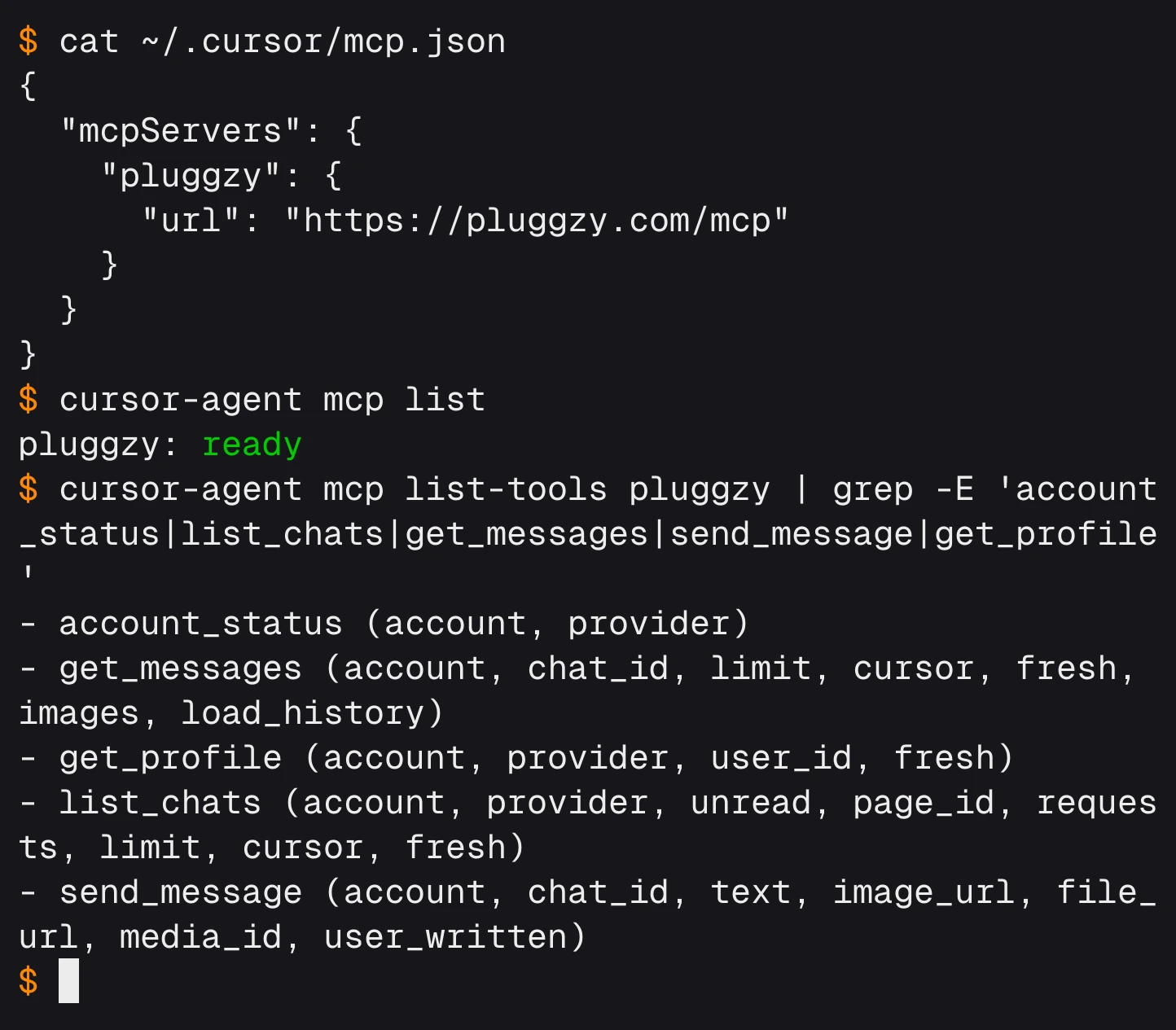
cursor-agent mcp list-tools pluggzy prints all 50. Then open an agent chat and ask which accounts it can use through Pluggzy. The agent calls list_accounts. On our test workspace the tool answered:
2 account(s): Alex Morgan (LinkedIn, running, 8e8b943e-47ce-48a5-b10c-42be3ce1b7c8); Alex Morgan (WhatsApp, running, c8689bc1-b504-450e-872d-4e3d93027400).Two accounts on one server entry. If you see one, go back to the Account menu in step 3.
What to ask first
Reads change nothing, so start there:
Find my conversations that are waiting for a reply.Cursor has your repository open next to your messages, and that’s what the other AI apps don’t have:
Read my WhatsApp group with the beta testers and turn every bug they reported into a checklist in BUGS.md.Read the last 10 commits in this repo and draft a LinkedIn post about the release. Don't post it.Using API keys instead
Keys suit a machine where nobody can sign in through a browser. A Pluggzy key belongs to one connected account, so two accounts means two keys and two entries. Create them under API keys in Pluggzy. Allow sending is off in the dialog, and the full key is shown once.
{
  "mcpServers": {
    "pluggzy-whatsapp": {
      "url": "https://pluggzy.com/mcp",
      "headers": { "Authorization": "Bearer ${env:PLUGGZY_WHATSAPP_KEY}" }
    },
    "pluggzy-linkedin": {
      "url": "https://pluggzy.com/mcp",
      "headers": { "Authorization": "Bearer ${env:PLUGGZY_LINKEDIN_KEY}" }
    }
  }
}
Cursor fills in ${env:NAME} from your environment, so the key stays out of the file. With the variable set, cursor-agent mcp list shows pluggzy-linkedin: ready. With it unset, the same entry shows requires_authentication, which looks like a sign-in problem and isn’t one.
Letting Cursor send
There’s no switch to flip on an existing connection. Open Connected apps in Pluggzy, press Revoke next to Cursor, run cursor-agent mcp login pluggzy again, and tick Send messages & posts this time. With keys, create a new key with Allow sending on.
Then say it in plain words: “Reply to Elena on WhatsApp: yes, Thursday works.” The send tool tells the agent to show you the exact text first.
Pluggzy paces what Cursor sends, whatever the agent asks for. WhatsApp actions leave 10 to 20 seconds apart with 10 new chats a day. LinkedIn actions leave 45 to 75 seconds apart with 25 invitations a day on a free account. Read will WhatsApp ban my number? and is it safe to connect LinkedIn to an AI agent? before you tick the box.
When it doesn’t work
requires_authentication after you signed in means the sign-in never came back. Check port 8787 and run the login again.
A send that fails with “This connection is not allowed to send messages & posts” means the connection is read-only. See the section above.
A tool that answers “Wait 16s” isn’t broken. That’s the gap between actions, and the agent can ask again after it.
401 Unauthorized with a key means the key is missing, mistyped or revoked.
The same accounts work in Claude Code and Codex. Pluggzy’s own reference for Cursor is in the setup docs.
Frequently asked questions
Do I need one MCP server for WhatsApp and another for LinkedIn?
Not when you sign in: one pluggzy entry reaches every account in your workspace as long as you leave the Account menu on its first entry. With API keys you need one entry per account, because a Pluggzy key belongs to one connected account.
Where do I put the config: ~/.cursor/mcp.json or .cursor/mcp.json?
Use ~/.cursor/mcp.json in your home folder. Cursor reads it in every project, in the editor and in the CLI. A project's .cursor/mcp.json travels with the repository, so never put a key in it.
How much does it cost?
$10 per connected account a month after a 3-day free trial, so WhatsApp and LinkedIn together are two accounts. Cursor itself isn't counted.