How to connect WhatsApp and LinkedIn to Codex
Add Pluggzy to Codex with the ChatGPT plugin or one codex mcp add command, and Codex can read your WhatsApp and LinkedIn messages. Real output included.
- How long?
- 5 minutes
- You need
- Codex
- Can it send?
- Not at first
Connect both accounts in Pluggzy, then add Pluggzy to Codex one of two ways: open its plugin in ChatGPT, or run codex mcp add pluggzy --url https://pluggzy.com/mcp. Codex can then list your chats, read messages, look up profiles and draft replies. It can’t send until you allow it.
We ran the command-line route for this page. The output below is from that run, against a test workspace.
Connect the accounts first
On Pluggzy’s WhatsApp connect page, choose Scan a QR code or Use a phone number instead and approve the link on your phone. On the LinkedIn one, sign in with Email or phone and Password, then press Connect LinkedIn. Both show as Connected on the Accounts page. The 3-day free trial covers them.
Route 1: the ChatGPT plugin
Codex uses the same Pluggzy plugin as ChatGPT. Open Pluggzy in ChatGPT’s plugin directory while signed in with the ChatGPT account you use in Codex, select Connect, and sign in to Pluggzy. Restart Codex. Pluggzy then shows up in the app, the CLI and the IDE extension.
On a Business or Enterprise workspace, an admin may have to allow the plugin first.
Route 2: the command line
codex mcp add pluggzy --url https://pluggzy.com/mcpThis one command does two jobs. It writes a [mcp_servers.pluggzy] table to ~/.codex/config.toml, and it starts the sign-in on its own:
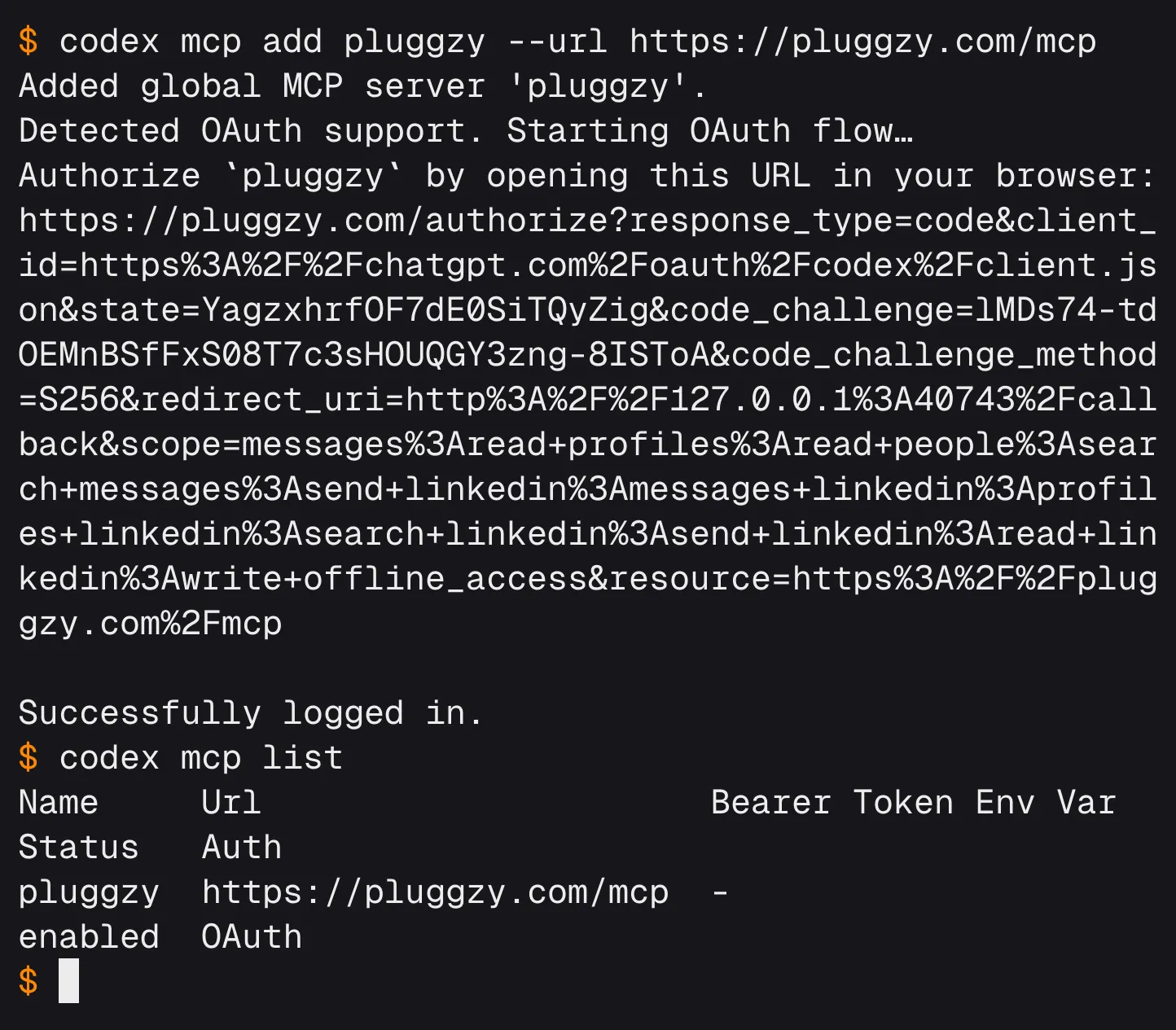
So you don’t run codex mcp login pluggzy the first time. Keep it for signing in again later. On a machine with no browser, codex mcp login pluggzy --no-browser prints the link for you to open elsewhere.
The link opens Pluggzy’s permission page.
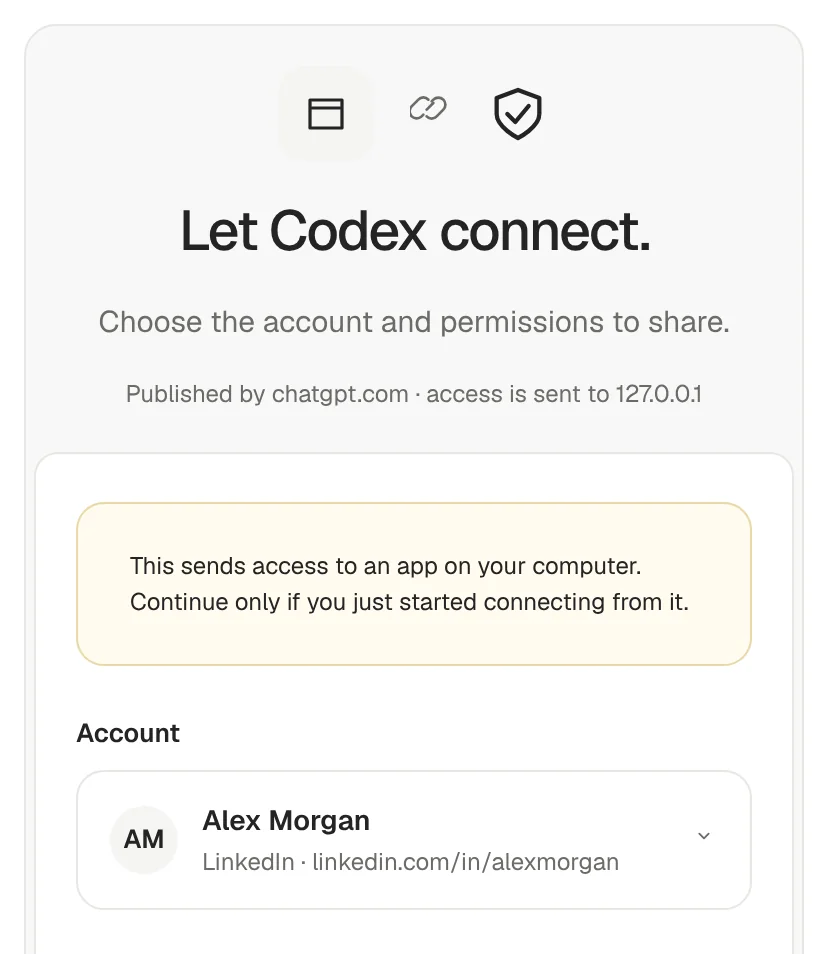
Leave the Account menu on its first entry. That keeps the connection open to every account in your workspace, so one server covers WhatsApp and LinkedIn. Choosing another entry ties Codex to that account alone.
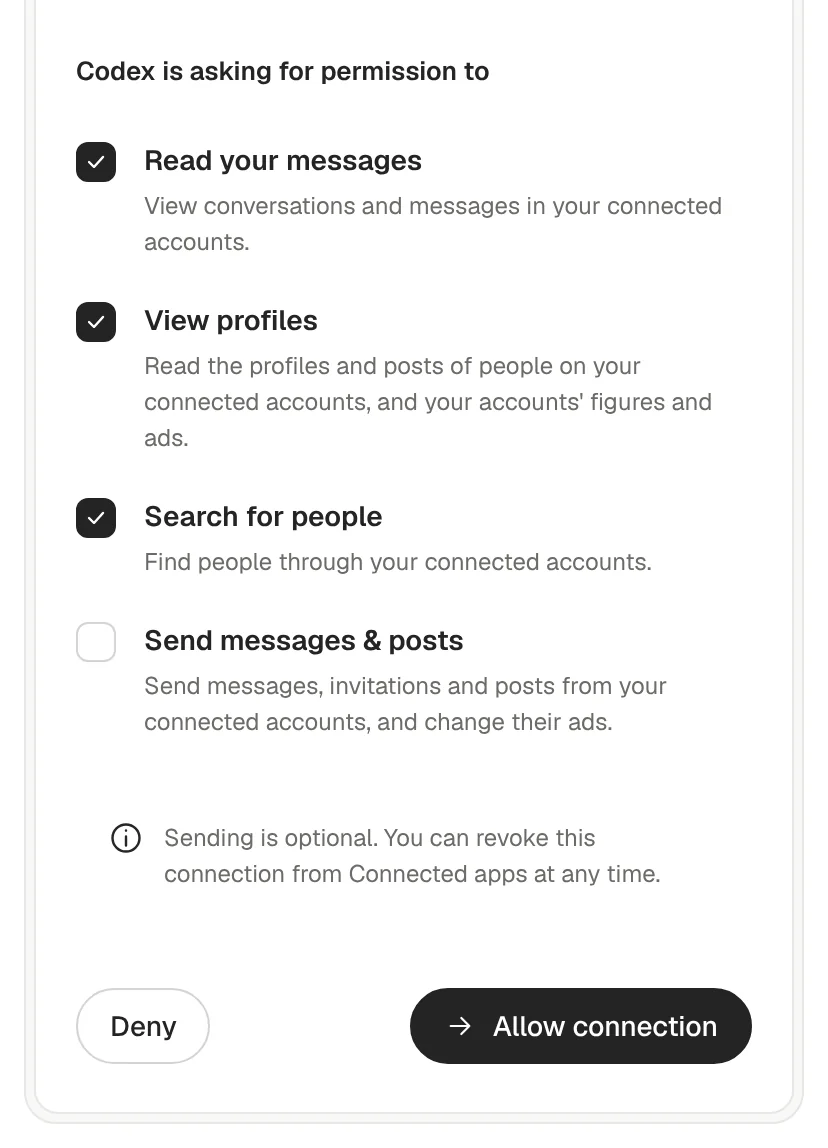
Leave Send messages & posts unticked and press Allow connection. The browser says “Authentication complete. You may close this window.” and the terminal prints Successfully logged in.
Check it
codex mcp list should show enabled under Status and OAuth under Auth, as in the screenshot above. In the Codex terminal UI, /mcp lists the server too.
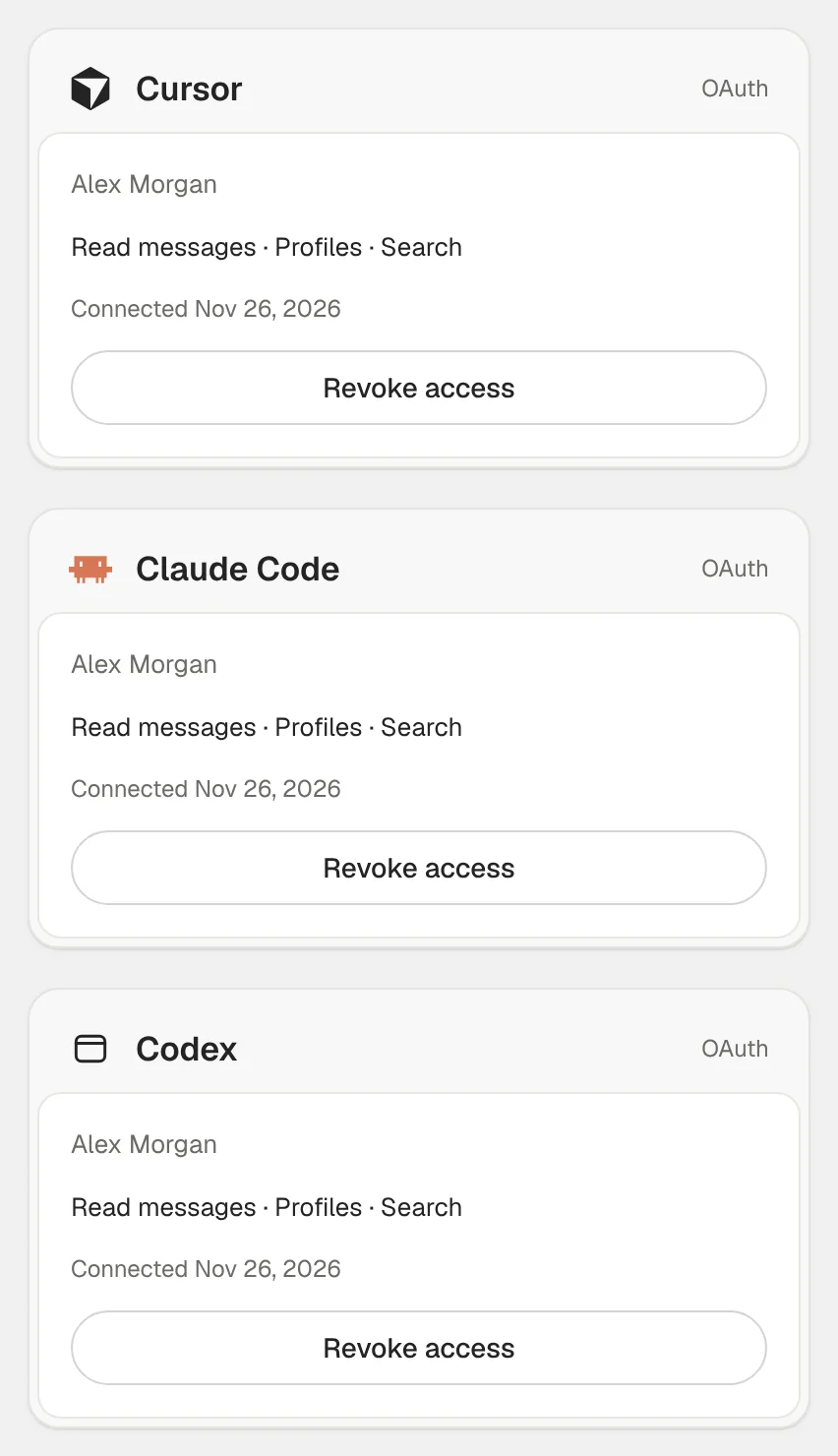
Pluggzy’s Connected apps page shows the other side of the same connection: Codex, the account, and what it may do: “Read messages · Profiles · Search”.
Does Pluggzy give Codex internet access?
No. Pluggzy gives Codex tools for your own accounts: list chats, read messages, look up a profile, draft, and send once you allow it. It doesn’t let Codex browse websites.
Web access is Codex’s own business, and OpenAI’s docs describe two separate controls. Web search uses a cached index by default; start Codex with --search or set web_search = "live" for live results. Commands that Codex runs in its default sandbox have no network until you add this to ~/.codex/config.toml:
[sandbox_workspace_write]
network_access = true
You need neither for Pluggzy. OpenAI’s security page says these command-network controls “do not, by themselves, disable hosted web search, apps, or MCP”, so Pluggzy’s tools keep working with the sandbox network off.
What to ask first
Find my conversations that are waiting for a reply.Codex has the repository open, so a question from a contact can be answered from the code:
A LinkedIn contact asked whether we support SSO. Check the repo, then draft a short, accurate reply for me to review.Read the WhatsApp group with our beta testers, list every bug they reported, and find the code each one touches.API keys, for CI
Where nobody can sign in, use keys. A Pluggzy key belongs to one connected account, so create one per account under API keys, with Allow sending left off unless the job has to send. Then add two tables to ~/.codex/config.toml:
[mcp_servers.pluggzy-whatsapp]
url = "https://pluggzy.com/mcp"
bearer_token_env_var = "PLUGGZY_WHATSAPP_KEY"

[mcp_servers.pluggzy-linkedin]
url = "https://pluggzy.com/mcp"
bearer_token_env_var = "PLUGGZY_LINKEDIN_KEY"
bearer_token_env_var holds the name of the variable, so the key never sits in the file. codex mcp list then shows the variable’s name in its own column and Bearer token under Auth.
Letting Codex send
A connection can’t be upgraded in place. Press Revoke next to Codex under Connected apps, then connect again and tick Send messages & posts on the permission page. If you came in through the plugin, connect again from Pluggzy’s page in ChatGPT. If you used the command line, run codex mcp login pluggzy. With keys, create a new key with Allow sending on.
Pluggzy paces what Codex sends. WhatsApp actions leave 10 to 20 seconds apart with 10 new chats a day. LinkedIn actions leave 45 to 75 seconds apart with 25 invitations a day on a free account. Go faster and the tool refuses with the wait. We made two WhatsApp lookups back to back and the second one answered:
WhatsApp actions are spaced 10–20 s apart, at random, to look human. Wait 16s.Read will WhatsApp ban my number? and is it safe to connect LinkedIn to an AI agent? before you tick the box.
When it doesn’t work
After the plugin route, restart Codex and check that ChatGPT and Codex are signed in with the same account.
If codex mcp list shows Not logged in under Auth, run codex mcp login pluggzy.
If only one account answers, you chose a specific account in the Account menu. Revoke Codex under Connected apps and connect again, the same way you did the first time, without touching the menu.
The same accounts work in Cursor and Claude Code. Pluggzy’s own reference is in the Codex setup docs.
Frequently asked questions
Does Pluggzy give Codex internet access?
No. It gives Codex tools for your own WhatsApp and LinkedIn accounts, not the open web. Codex's web search and its sandbox's network access are separate Codex settings, and Pluggzy's tools work with sandbox network access left off.
How do I give Codex internet access?
In the Codex CLI and IDE extension, start with --search or set web_search = "live" for live web results. For commands that need the network, set network_access = true under [sandbox_workspace_write] in ~/.codex/config.toml. Neither is needed for Pluggzy.
Do I run codex mcp login after codex mcp add?
Not the first time. codex mcp add detects that Pluggzy uses OAuth and starts the sign-in itself. codex mcp login pluggzy is for signing in again later, for example after you revoke the app to change its permissions.
How much does it cost?
$10 per connected account a month after a 3-day free trial, so WhatsApp and LinkedIn together are two accounts. Codex itself isn't counted.