How to send WhatsApp messages from Claude, and check they went out
Send WhatsApp messages from Claude: the one box to tick, the two permission prompts, and why the chat still shows as unread after Claude replies.
- What you need
- WhatsApp + Claude
- Does Claude ask first?
- Yes, before its first send
- How many a day?
- Up to 100 messages
The message Arnaud sends in this video is eight words long: “I will post on Monday our LinkedIn post”. Claude delivers it to a friend on WhatsApp through Pluggzy, exactly as typed, word order included. The proof at the end is the odd part. The message is there on WhatsApp, and the conversation still shows as unread.
This page covers the second half of the video, from 1:40. That’s the permission that makes sending possible, the two times Claude stops to ask, and what you’ll see on your phone afterwards.
Turn on sending
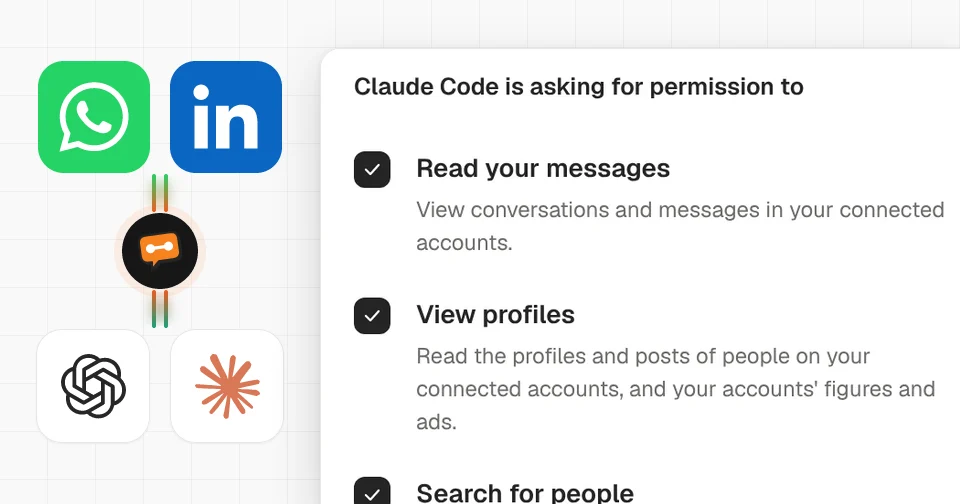
Sending is decided on one page, the Pluggzy page titled Let Claude connect. that opens while you add the connector. It lists four permissions and ticks the three read ones for you. Send messages & posts is the fourth, and it’s off.
Arnaud’s instruction at 1:40 is blunt. Tick it, “otherwise, you won’t be able to send WhatsApp messages.” He reads the label as “Send messages and invitations”, which was its name at the time. Then click Allow connection, and your browser asks to open Claude again.
If you connected a while ago and skipped the box, there is no switch to flip afterwards. In Pluggzy, open Connected apps and click Revoke on Claude’s row. Then connect Claude again and tick the box on the way through.

Ask about the chat before you write
Arnaud doesn’t open with the message. He first asks for the latest message he sent to a friend on WhatsApp, “a very basic example” in his words. The question does two jobs. It proves Claude found the right chat, and it puts the conversation in front of Claude before it writes anything.
Claude pauses on a box saying it wants to use List conversations from Pluggzy, with Always allow and Allow once as the choices. He picks Always allow. Claude then reports that his last message was about staying “almost a full month in Japan”, and Arnaud remembers out loud that he owes this friend an answer.
List conversations from  Pluggzy ⌄Limit50Decline EscAlways allowAllow once ⌘↵
Tell Claude what to send
His next line is the whole instruction. He types send the message “I will post on Monday our LinkedIn post”. Because the text is in quotes, Claude has nothing to draft. A second permission box appears, this time for the sending tool, and he clicks Always allow again.
That choice matters more here than it did for reading. With Always allow on sending, Claude’s own prompt won’t stop the next message. The only check left is Claude showing you the text, which Pluggzy asks it to do before every send. If you want a click between you and each message, choose Allow once. Either way, Claude finishes by confirming who the message went to.
Used Pluggzy ›Your last message to Sarah was on Friday, replying to her “back from your trip yet?”:
“nearly a full month in Japan, back on Monday!”
Before that, you'd agreed to publish your joint LinkedIn post together. She replied twice since, and you haven't read those yet.
Used Pluggzy ›I sent “I will post on Monday our LinkedIn post” to Sarah on WhatsApp.
Check it on WhatsApp
Arnaud opens WhatsApp to look, and the message is in the chat, sent from his number like any other. Then he points at the detail that tells him Claude did it: “The conversation is unread. When you write a message yourself, the conversation is read by default, but because I used Claude to send it, it stays unread.”
Pluggzy reads and sends without opening the chat the way your thumb does, so whatever your contact wrote earlier stays bold in the list. If the badge bothers you, tell Claude to mark the chat as read. That’s a separate action, and it doesn’t happen as a side effect of reading or replying.
What else Claude can send
A reply can carry one file. That’s an image (JPEG, PNG or WebP, up to 8 MB) or a document up to 15 MB, which covers PDF, Word, Excel, PowerPoint, TXT and CSV. A file you drop into the Claude chat doesn’t reach Pluggzy, so Claude gives you an upload link for it, or you hand it an https link to a file that’s already online. Videos and voice notes can’t be sent this way.
Claude can also post in a group you’re in, react to a message with any emoji, and start a chat with a number you’ve never written to if you give it with the country code, like +33 6 12 34 56 78. Pluggzy caps all of this per number. You get 100 messages a day and no more than 3 in a minute, 10 new chats a day and one a minute, and each send waits 10 to 20 seconds after the previous one. The WhatsApp docs have the full table.
Messages to try
The first is Arnaud’s opening question with the name changed. The second sends the way he does, with the exact words in quotes, so run them in that order.
- First, read
What is the latest message I sent to Sarah on WhatsApp?
Paste it in Claude - Then send
Send the message “I'll call you back after 6”
Paste it in Claude - File
Send Marc a PDF on WhatsApp with one line saying it's the final version. Give me the upload link first
Paste it in Claude - Group
Tell the Design team group on WhatsApp that the review moves to 3 pm, then mark the chat as read
Paste it in Claude
Read the transcript· 3:18 of video, 13 parts
- 0:00
How to send WhatsApp messages from Claude for free. If you go to Claude, then Customize, then Connectors, and type WhatsApp, you'll quickly realize there's no connector to connect WhatsApp to Claude. So it's basically impossible to manage your WhatsApp inbox, do automations or send WhatsApp messages from Claude.
- 0:24
To fix that, click on the link in the description or go to pluggzy.com and click on Connect your accounts, then on WhatsApp. You have two options: scan a QR code or use a phone number. I'm going with the QR code.
- 0:39
Take your phone, go to WhatsApp, then Settings, click on Linked devices and scan the QR code right here. It should take five to ten seconds to connect the account.
- 0:51
And that's it, WhatsApp is connected. Now click on Add to my AI and go with Claude, then follow the instructions. Copy this URL and go back to Claude.
- 1:07
Make sure you're inside Customize, then Connectors, and click on Add custom connector. Paste the URL, write Pluggzy and click on Continue.
- 1:22
Make sure it's on Sign in now, which is normally automatic, touch nothing else and click on Add. It checks the connection, then you click on Connect, and it opens a window where you click on Continue connecting.
- 1:40
Then make sure you tick Send messages and invitations. Otherwise, you won't be able to send WhatsApp messages. Click on Allow connection, and open Claude again when it asks.
- 1:53
WhatsApp is now connected to Claude, so let's test it and send a message. I'm opening a new chat for a very small test. Obviously you can automate a lot of things with this integration.
- 2:06
I'm going to ask: what is the latest message I sent to Sönke on WhatsApp? My goal is just to show you how the integration works with a very basic example. Here I click on Always allow.
- 2:22
The last message is me saying I was staying almost a full month in Japan, and I know I owe him a message about something. So I'm going to send a real one: send the message “I will post on Monday our LinkedIn post”.
- 2:37
Again I click on Always allow. It's a very basic example, but you can do pretty much whatever you have in mind with this WhatsApp integration inside Claude. And now Claude tells me the message has been sent.
- 2:49
Let's check it out: the message has been sent on WhatsApp. And how do I know? The conversation is unread. When you write a message yourself, the conversation is read by default, but because I used Claude to send it, it stays unread.
- 3:07
You now know how to send WhatsApp messages from Claude. Like this video and subscribe to this channel for more content like this. Cheers, bye.
Frequently asked questions
Claude says it isn't allowed to send. What now?
The connection was approved without “Send messages & posts”. Open Connected apps in Pluggzy, click Revoke next to Claude, connect Claude again and tick the box on the page titled “Let Claude connect.” Your WhatsApp stays linked the whole time.
Why is the chat still unread on my phone after Claude replied?
Sending through Pluggzy doesn't open the chat, so the messages your contact sent earlier stay unread. Arnaud uses that at 2:49 as his proof that Claude sent it. Ask Claude to mark the chat as read to clear the badge.
Can Claude send a photo or a PDF from my computer?
Yes, one file per message, but attaching it in the Claude chat isn't enough. Claude gives you a Pluggzy upload link, you drop the file there, and it goes out with the text. Images can be JPEG, PNG or WebP up to 8 MB. Documents can be PDF, Word, Excel, PowerPoint, TXT or CSV up to 15 MB.
Always allow or Allow once?
For the reading tools, Always allow saves clicks. For the sending tool, Allow once keeps a click between Claude and every outgoing message. Arnaud picks Always allow both times in the video.